
How do I link Outlook to my email account?
Learn how to link Outlook to my email account with clear step-by-step instructions.
Using your own e-mail address via Outlook? Here it is explained!
-
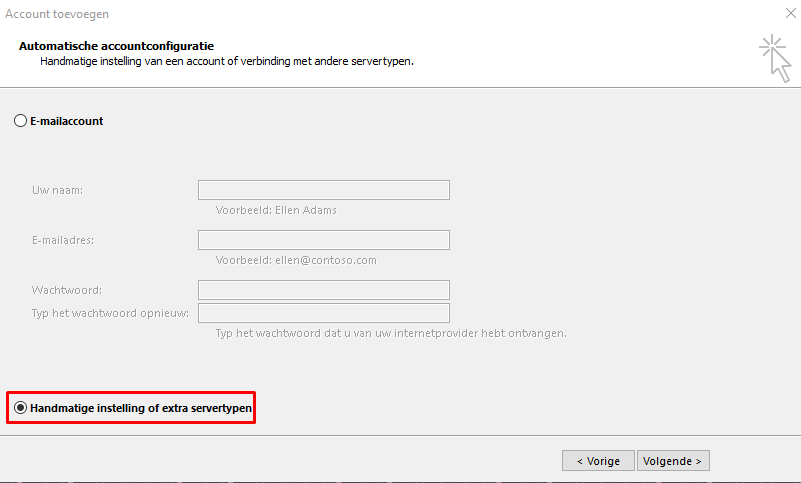
Open Outlook and go to the Add Account window
-
Check the bottom option here (Manual setup or additional server types) and click on next
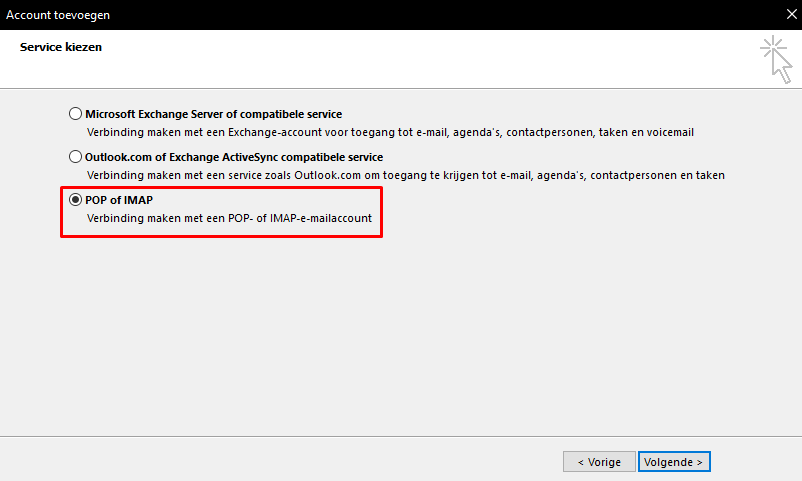
- Multiple services are listed in the next window. In this case we use IMAP so we go for the bottom option.
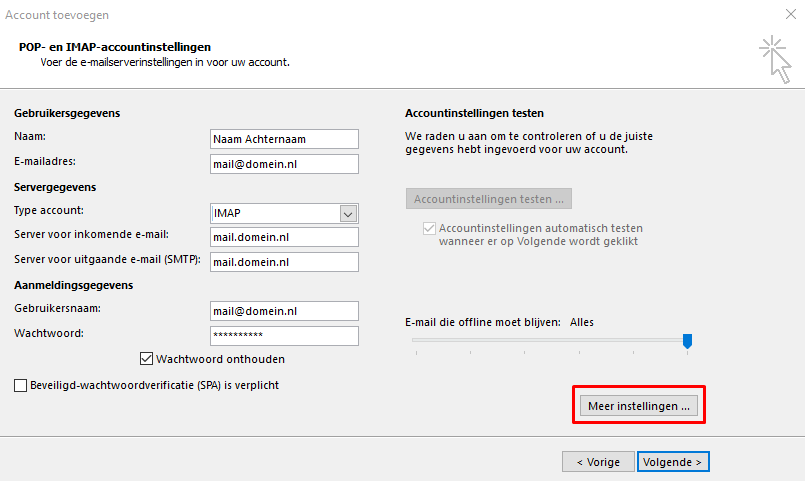
- Enter the desired information here.
- The server for incoming and outgoing mail should work mail.domain.nl. (this must be adjusted to the appropriate domain name) If this does not work, webX.etheron.eu is also an option, where X stands for the server number. It can be found in the URL of the web hosting panel.
- Change *POP3 *to *IMAP *then click More Settings
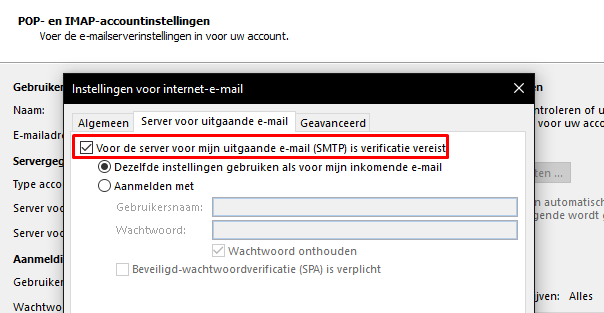
- At More settings, click on the tab Outgoing e-mail server and check the top option: "My outgoing e-mail server (SMTP) requires authentication".
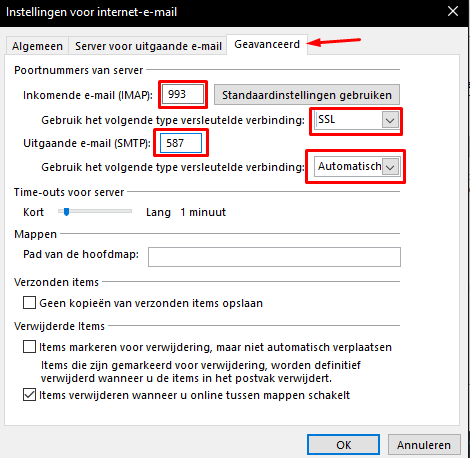
- Then click on the tab next to Advanced. A few things need to be changed here.
-
Change the Incoming Email (IMAP) port number to 993 and choose SSL as the encrypted connection type.
-
For outgoing e-mail (SMTP), change it to 587 and choose Automatic as the type of encrypted connection.
Click OK to close this window.
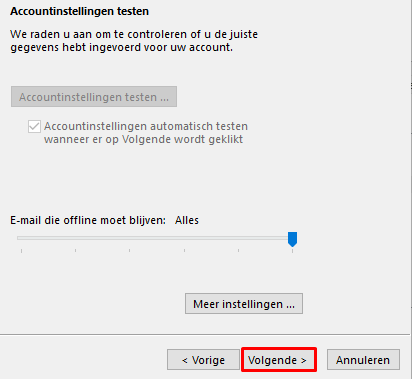
- Click Next to perform a mail test.
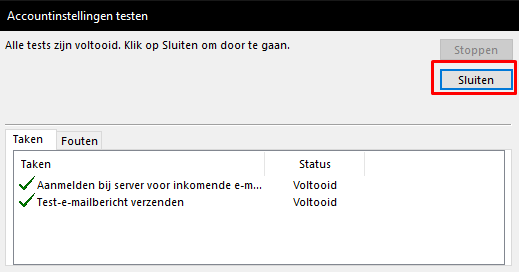
- Has this test been completed? Then click on close.
You can now manage your email via Outlook. Still need help? Let us know!
Lars
Updated on: 09/09/2026
Was this article helpful?