
Pterodactyl on a VPS
bash <(curl -s https://files.etheron.nl/Pterodactyl/install.sh)
Here is a detailed guide on how to install the Pterodactyl panel on your VPS.
Connect via SSH
-
Ensure you have Ubuntu installed on your VPS.
-
Connect to your VPS via SSH. You can easily do this using the program Putty.
Note: While entering your password, you won’t see what you type.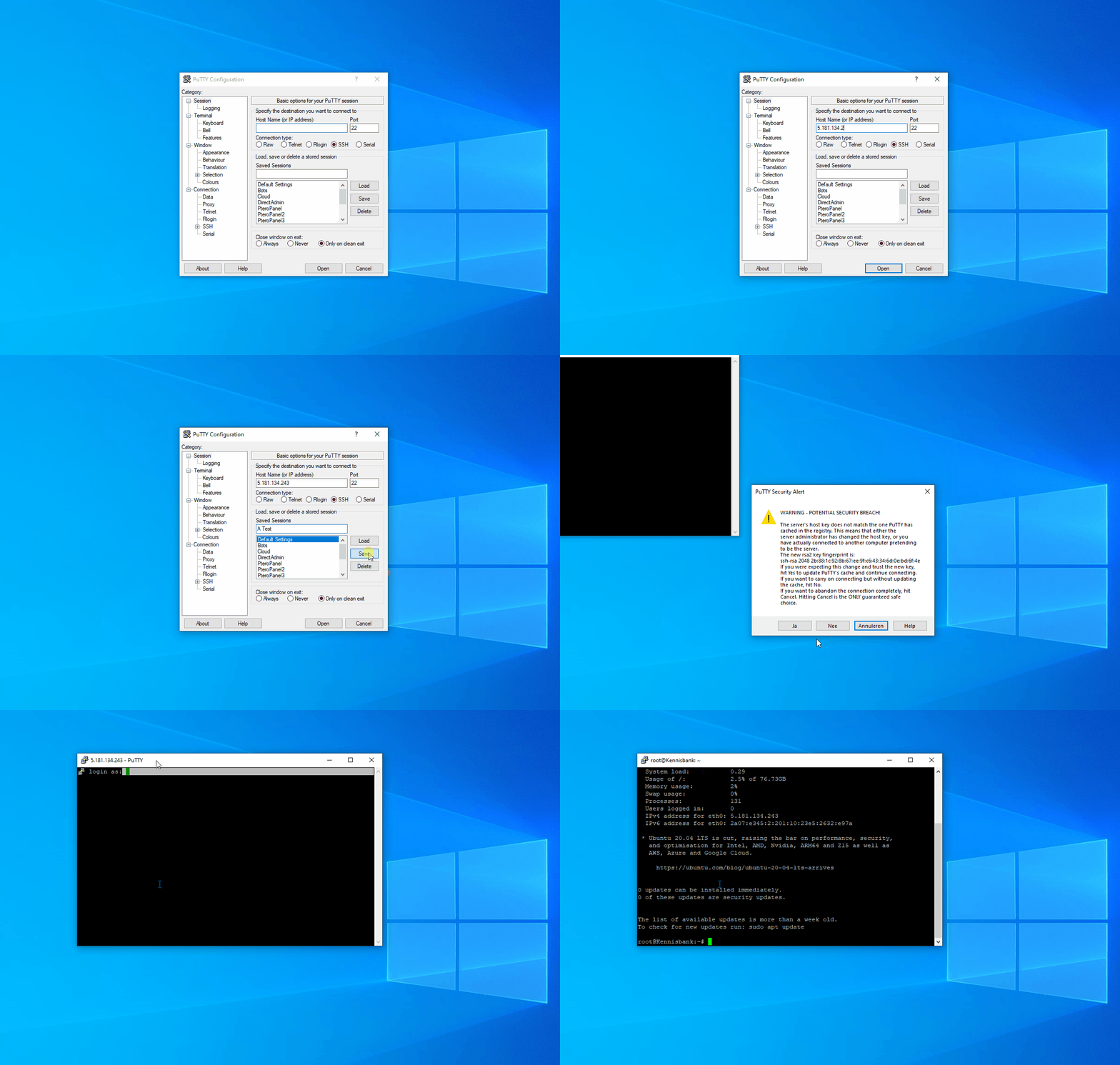
Panel + Wings Installation
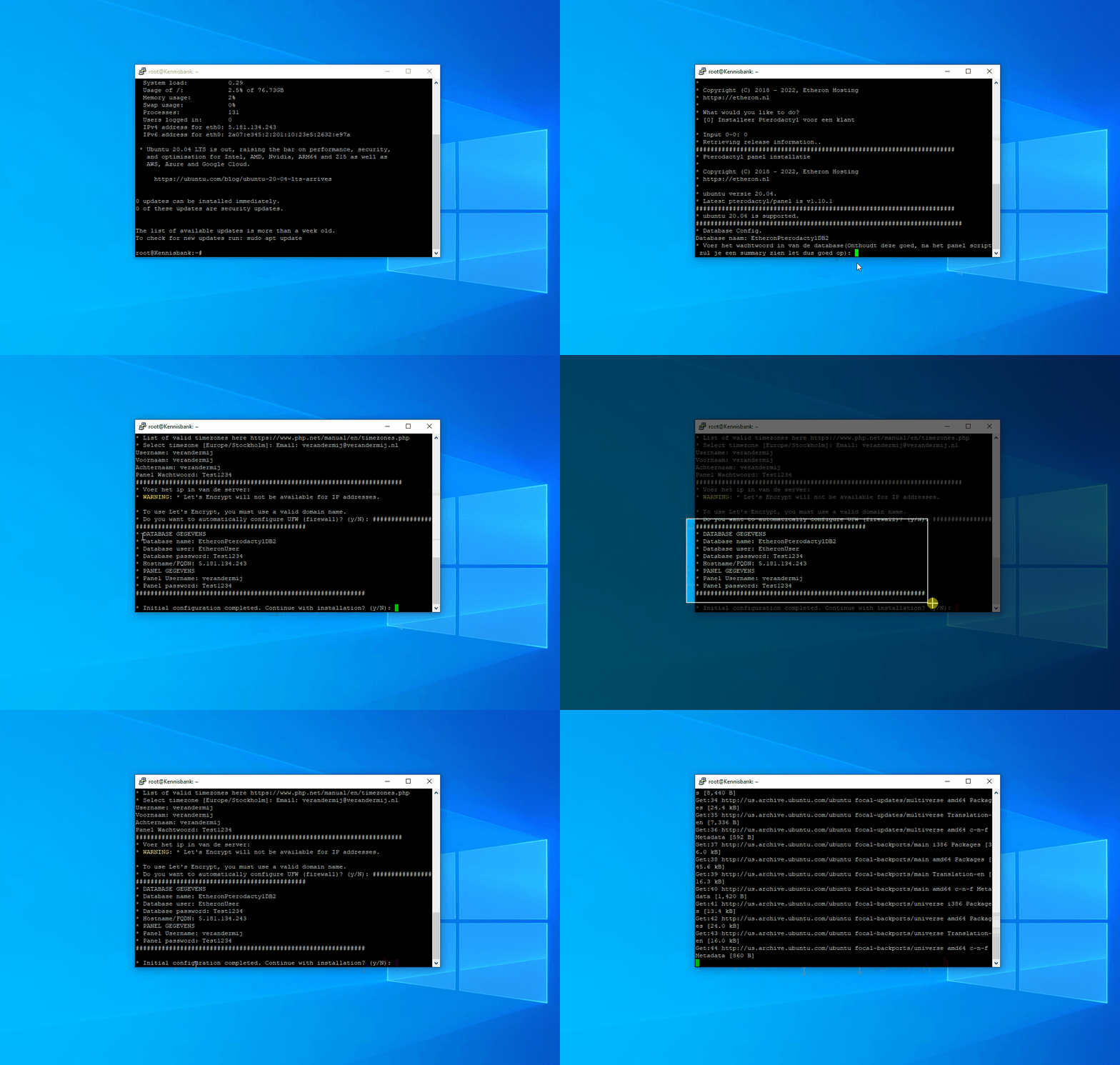
- Use the Pterodactyl installation script we’ve created:
bash <(curl -s https://files.etheron.nl/Pterodactyl/install.sh)
- Choose your password and press Enter.
After entering your password, the terminal will show an overview of all important information. We recommend you take a screenshot of this!
Important: This password is for everything, and you’ll need it again later!3. When prompted with "Continue with installation (Y/n)?", type** y** and press Enter.
The installation will now begin. This may take some time.
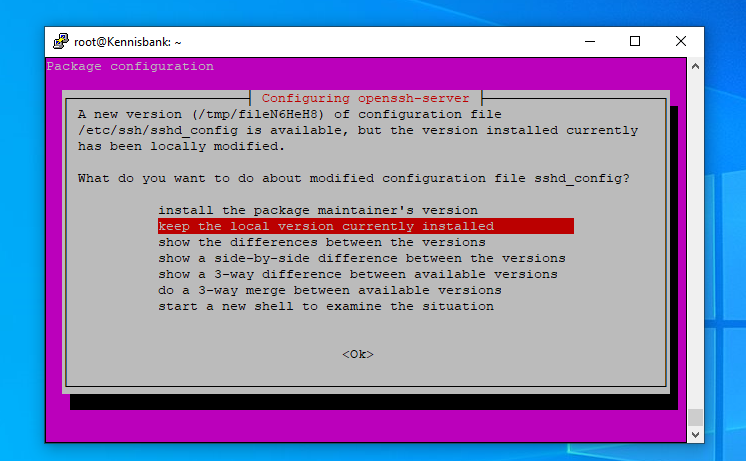
- When you see Package Configuration, choose Keep the local version currently installed and press Enter.
- Once the script is complete, you can enter your VPS IP address in your browser to access the panel.
Default Username: verandermij
verandermij means "Change me" in Dutch.Password: The password you entered during installation.
Database Configuration
-
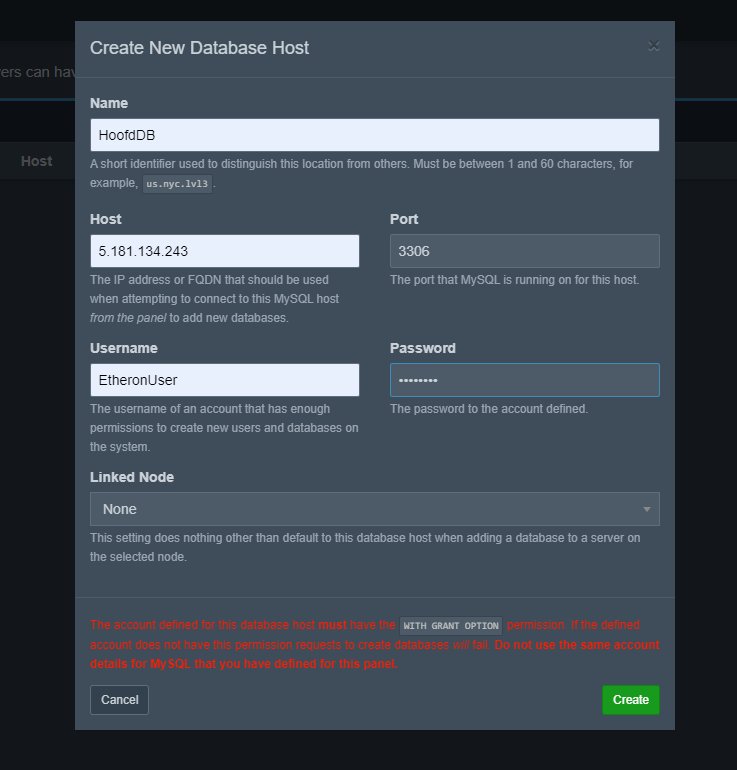
Go to the Admin panel and navigate to Databases.
-
Click Create New.
Host: The IP address of your VPS.
Default Username: EtheronUser
Password: The password you entered during the installation.
- Click on Create
Node Configuration
-
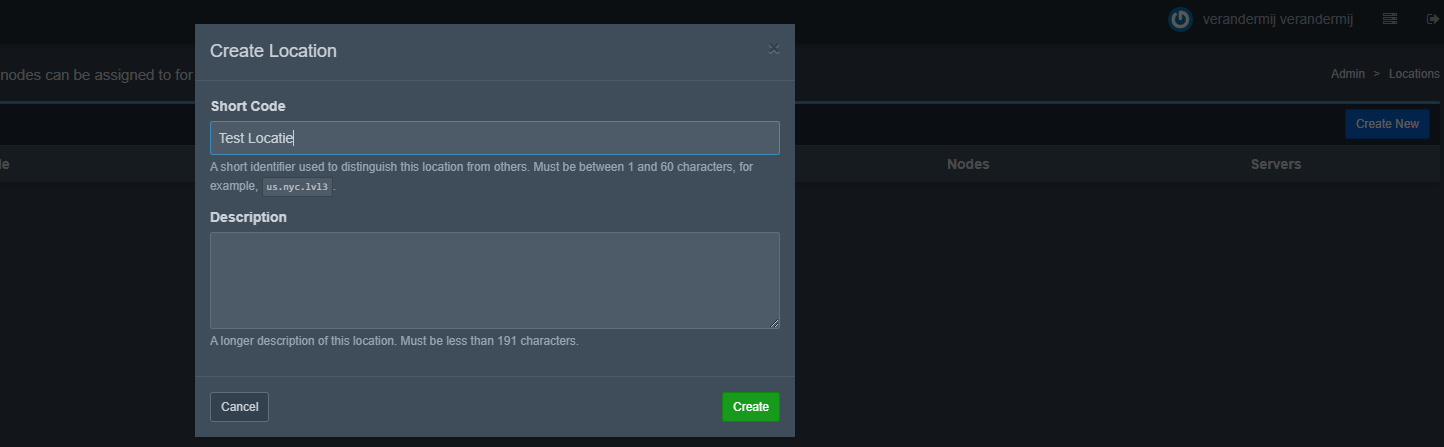
Go to the Admin panel and navigate to Locations.
-
Click Create New.
-
Choose a name for your location (e.g., Test Location).
-
Click Create.
-
Then navigate to Nodes.
-
Click Create New.
-
Check how much storage and RAM your VPS has and enter these values (example below).
-
Click Create Node.
In our case, the VPS has 8 GB RAM and 80 GB storage.1 GB = 1024 MB.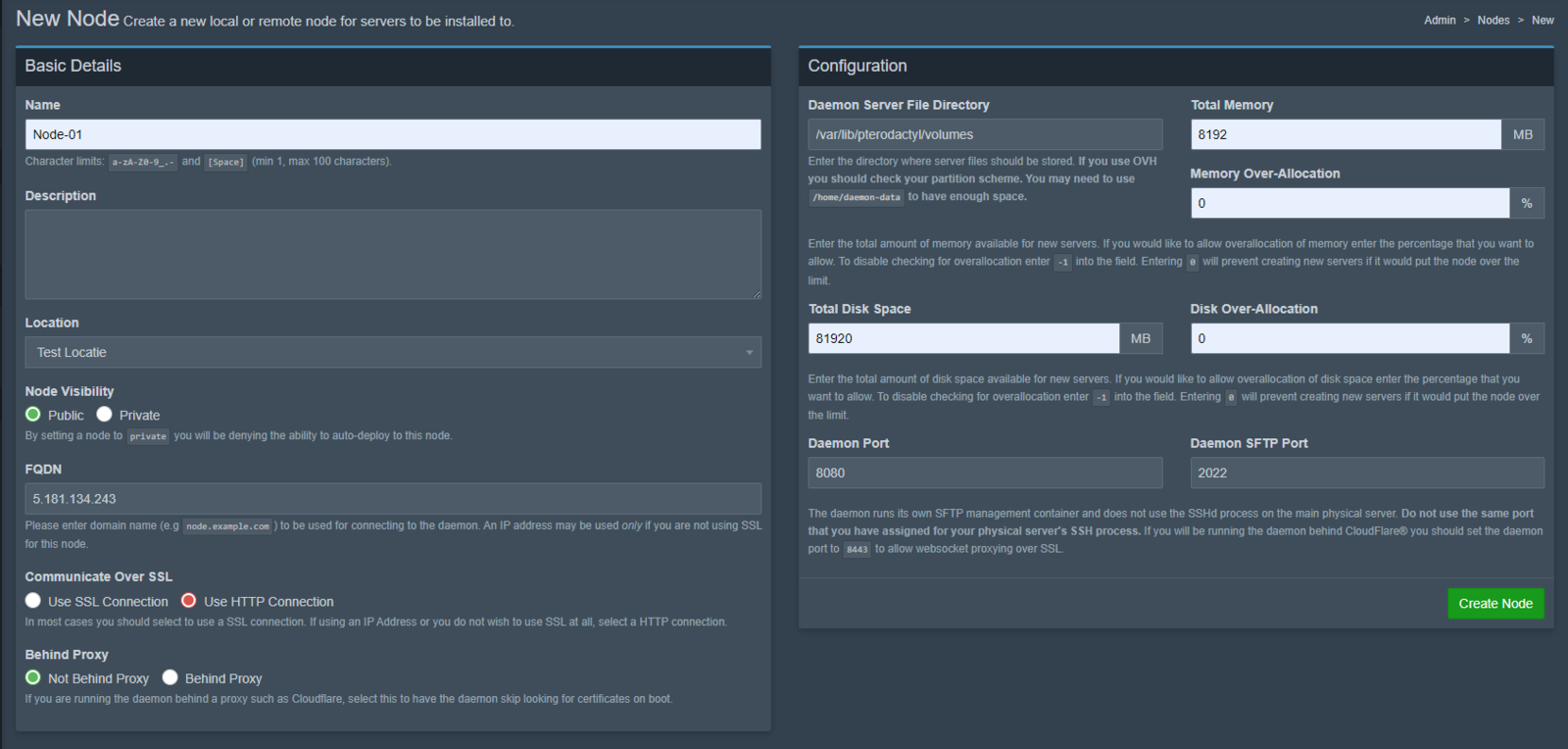
-
Click on Configuration and auto-deploy the node using SSH
-
Enter the following command: service wings start.
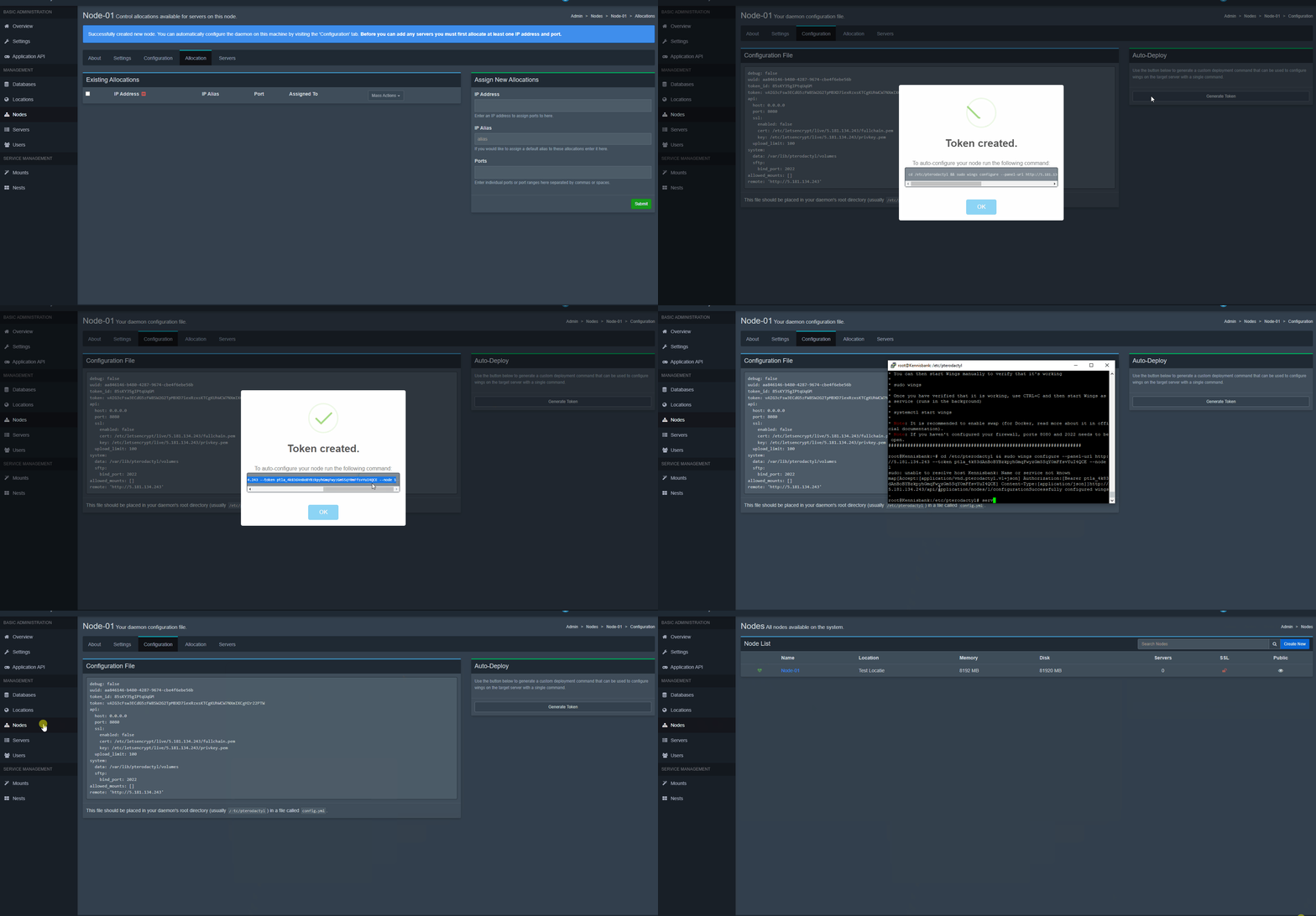
Je hebt nu Pterodactyl geïnstalleerd op een VPS!If you encounter any issues, feel free to reach out via Discord or create a support ticket through this link.