
How Do I Install Dokploy on My Etheron VPS?
In this article, we explain how to install Dokploy on your Etheron VPS using the one-click app.
In this article, we explain how to install Dokploy on your Etheron VPS using the one-click app in the VPS panel.
Dokploy is a self-hosted Platform-as-a-Service (PaaS). You can use it to manage applications, databases, and Docker containers from your own VPS.
Note: Are you installing Dokploy on a new or rebuilt VPS? Existing data on the VPS may be removed. Make a backup first if the VPS already contains important files.
What do you need?
- An Etheron Hosting VPS
- Access to the VPS panel via cloud.ping64.net
- An SSH key, if you want to use one
Installing Dokploy
-
Log in to cloud.ping64.net.
-
Open the VPS you want to install and click Manage.
-
Start the installation or rebuild through Server Setup....
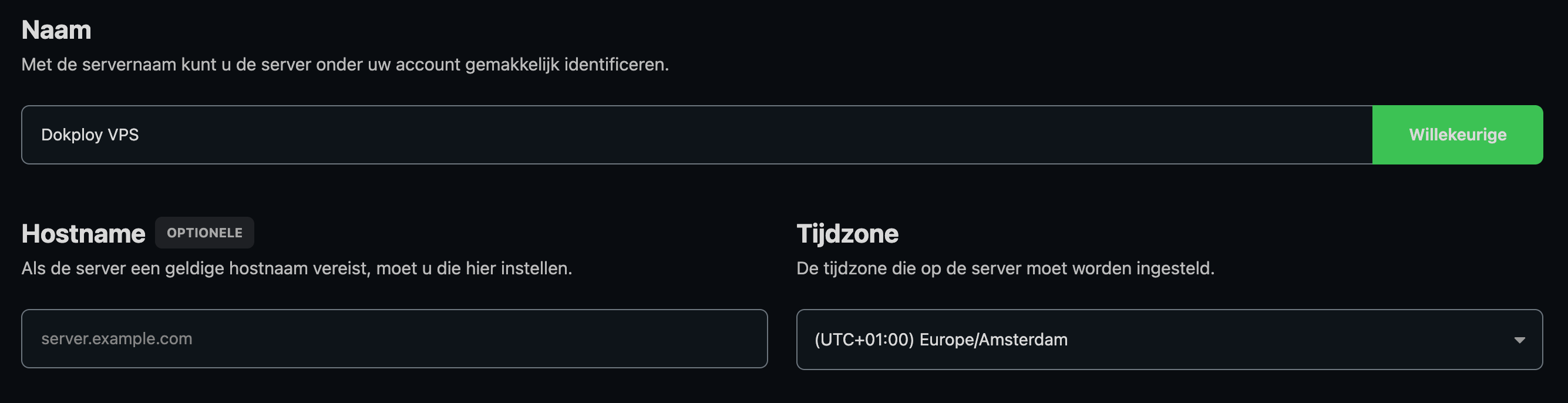
Give your VPS a recognizable name, for example Dokploy VPS. You can leave the hostname empty if you do not need one.
-
Choose the correct timezone, for example Europe/Amsterdam.
-
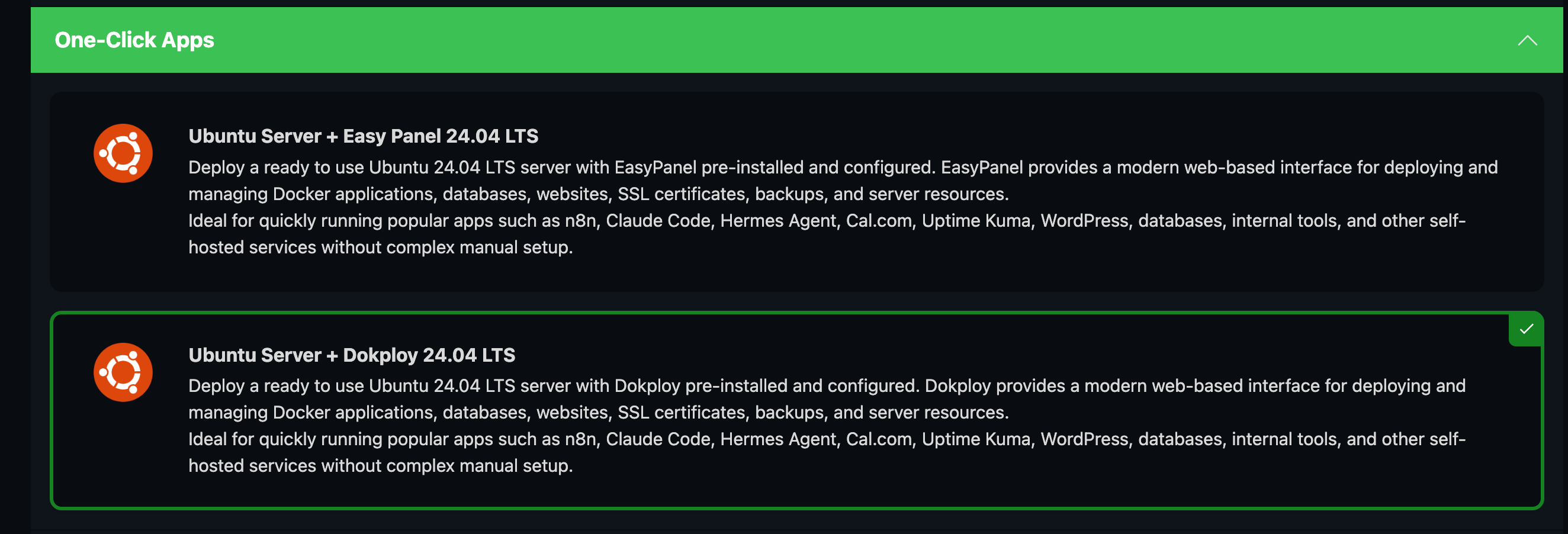
Go to Operating System and choose One-Click Apps.
Then select Ubuntu Server + Dokploy 24.04 LTS.
- Check the extra options, such as Swap Space, IPv6, and SSH keys.
For Dokploy, swap is useful as an extra safety net when RAM usage temporarily increases. 1 GB is a good starting point for many smaller installations.
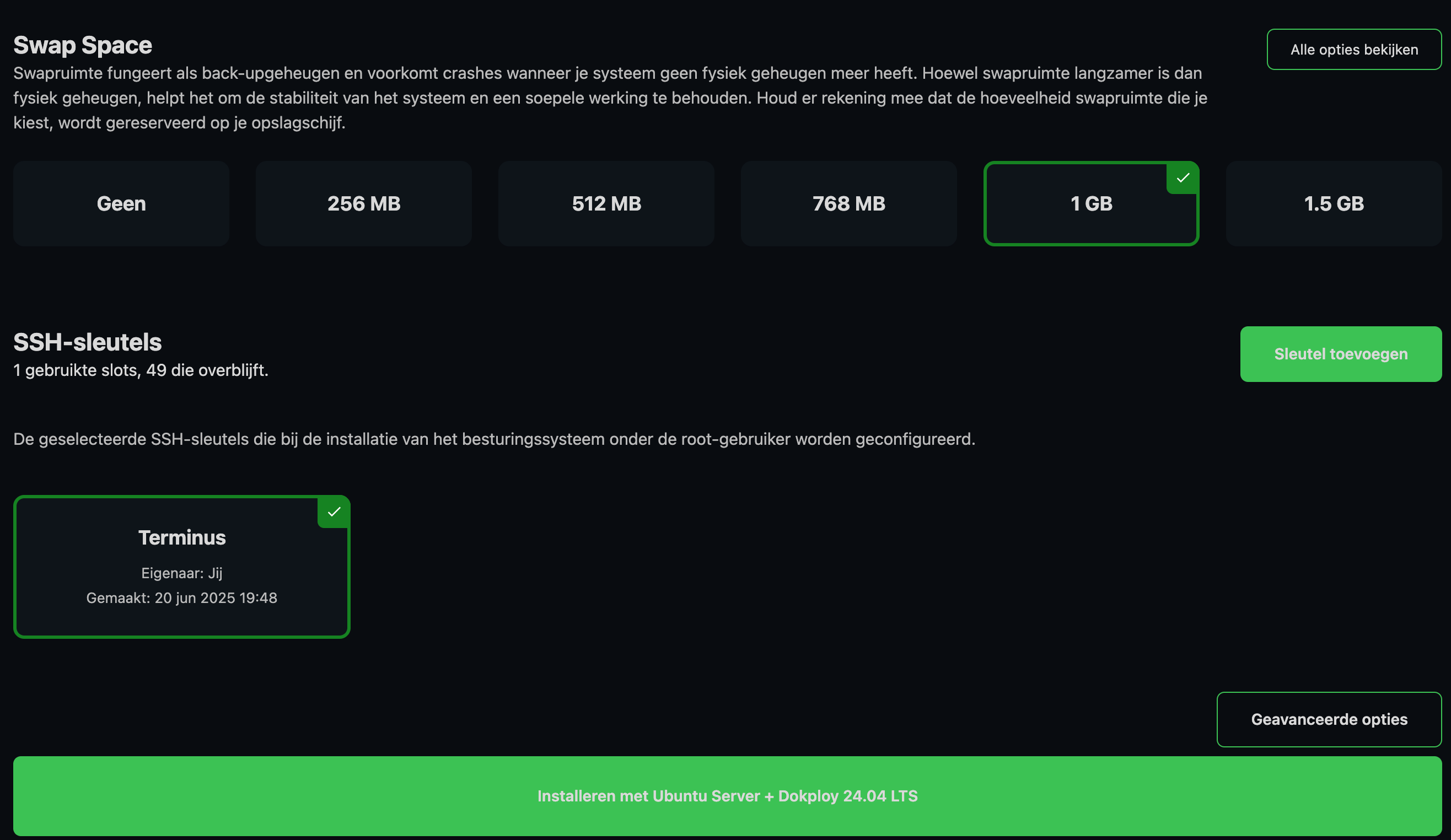
- Start the installation.
If you are not using an SSH key, the panel may ask you to confirm that you want to install without one. Check this carefully and only confirm if this is correct.
The installation usually takes a few minutes. Wait until the task is complete and the VPS is active.
Opening Dokploy
After installation, you can open Dokploy in your browser. Use your VPS IP address with port 3000:
http://your-vps-ip:3000
On your first visit, you will create an admin account for Dokploy. Choose a strong password and store the login details safely.
What now?
Your VPS is now running Dokploy. Continue with the article about the first steps in Dokploy:
Getting Started with Dokploy on Your Etheron VPS
If it does not work, feel free to reach out via Discord or create a support ticket.