
Uploading an Existing World to my Valheim Server
C:\Users\(Your Computer Username)\AppData\LocalLow\IronGate\Valheim\worlds
Here’s how to upload your own existing world to your Valheim server.
World Location
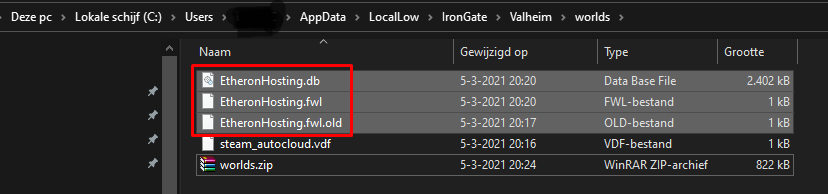
- First, you need your existing world. By default, you can find it at:
C:\Users\(Your Computer Username)\AppData\LocalLow\IronGate\Valheim\worlds
- Create a .zip file of all the world files. In this example, our world is called "EtheronHosting."
Upload the World
- Upload the zip file you just created via Files to the following location:
/config/unity3d/IronGate/Valheim/worlds_local
- Drag your zip file into this worlds_local folder and right-click on it to Unarchive.
Change Server Settings
-
Now that your world is uploaded, you just need to set your server to use it.
-
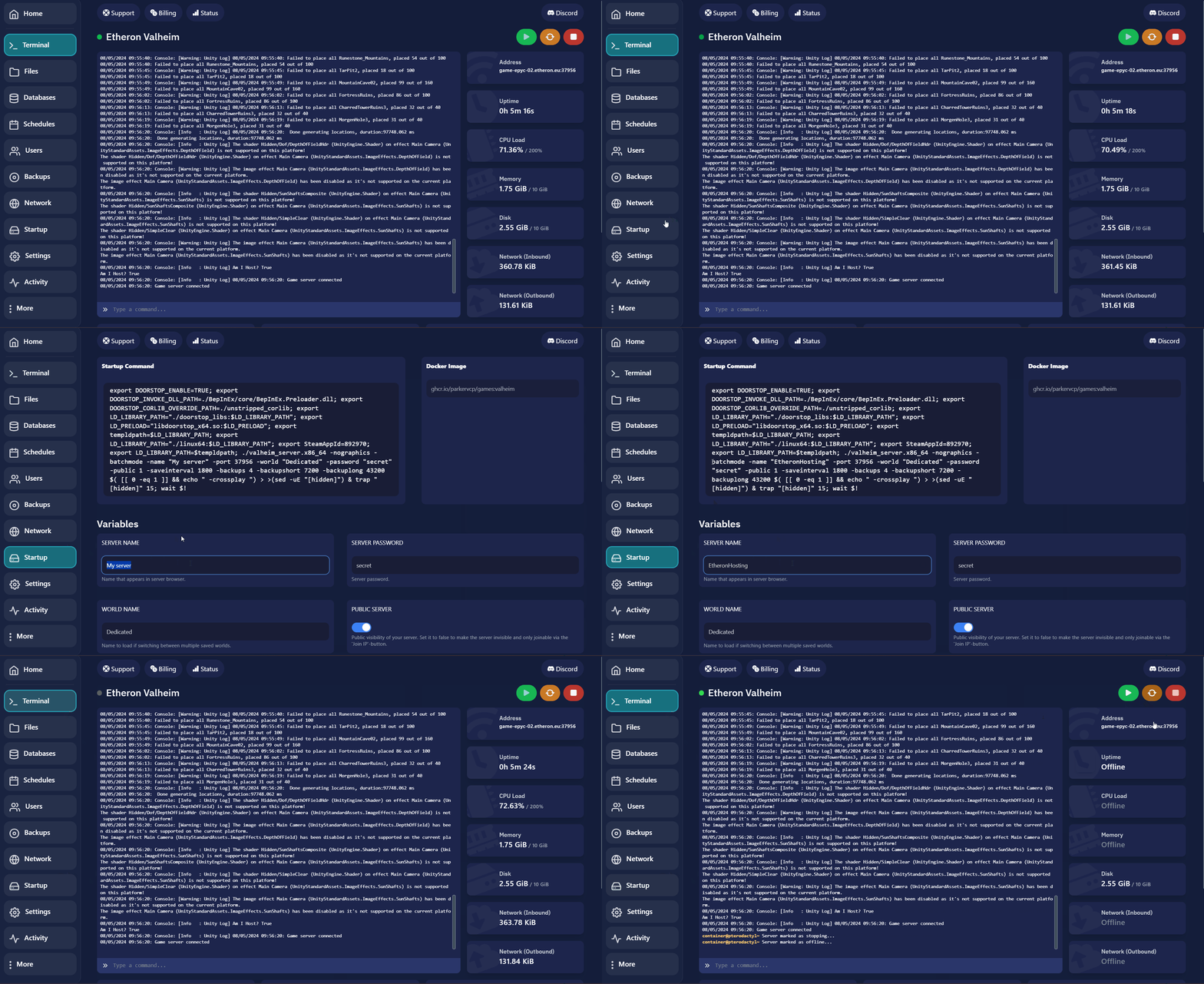
Go to Startup and set the world name to the name of the world you uploaded.
-
Restart the server.
If you encounter any issues, feel free to reach out via Discord or create a support ticket through this link.
Lars
Updated on: 09/09/2026
Was this article helpful?